Capture a game or playback window while you use it. Completed 15-minute blocks are analyzed in the background.
Local AI · Your footage stays private
Turn gameplay into moments worth replaying.
Automatically transform live or recorded gameplay into polished, share-ready highlight reels—without uploading your footage.

Home
Choose your workflow.
Start with a finished video or record live. Both paths create playable reels saved locally.
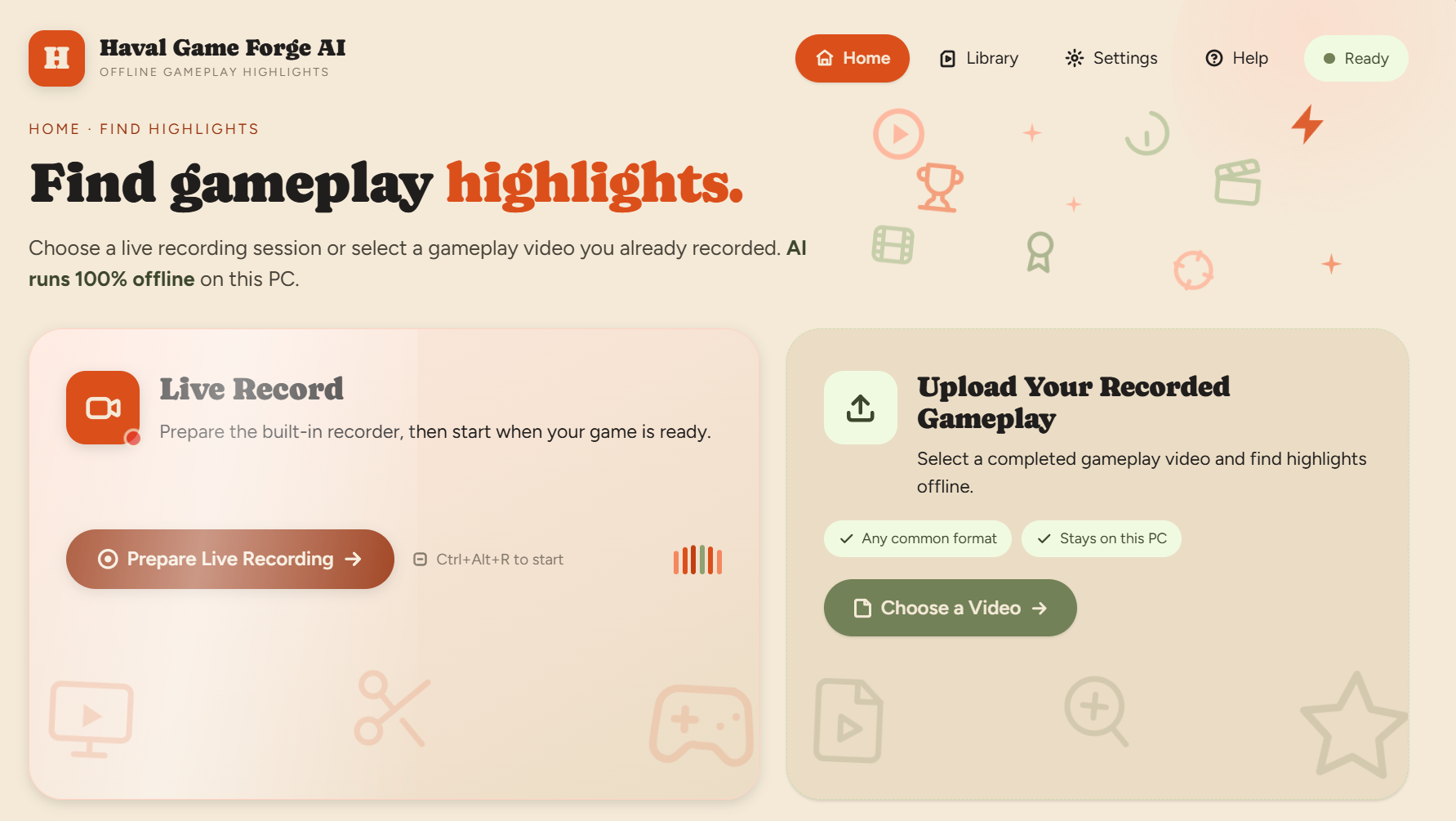
Choose a finished MP4, MKV, MOV, or another supported video and let the offline AI find highlights.
Return to reels from earlier sessions to play, export, or remove them.
Upload route
Analyze an existing recording.
The direct path when your complete gameplay video already exists.
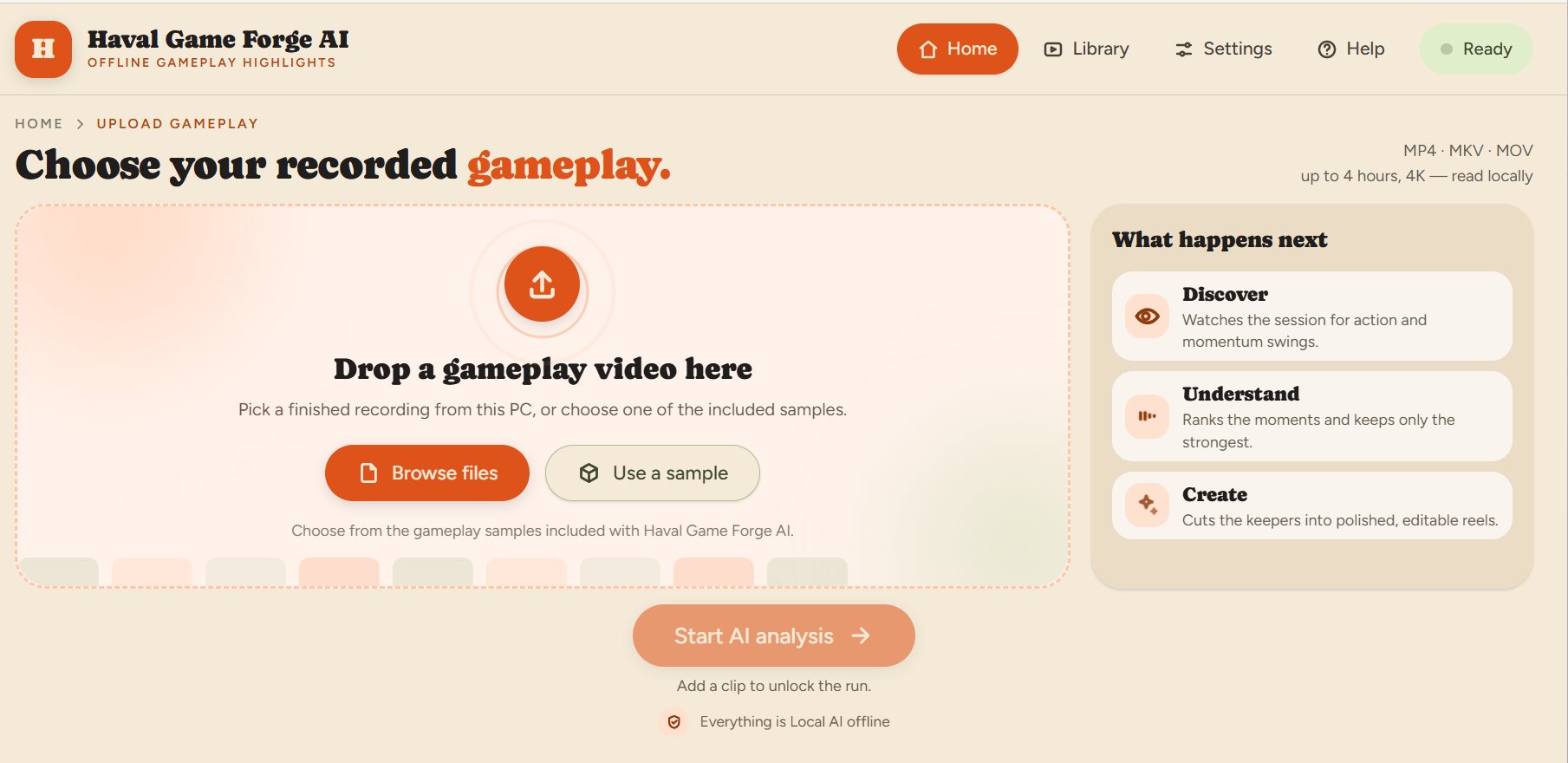
Open Upload Gameplay
From Home, select Upload Your Recorded Gameplay.
Choose the video
Select Browse Files and pick your completed gameplay recording.
Confirm the selected file
Check the filename, duration, and resolution shown in the selected-video card.
Start AI analysis
Select Start AI Analysis. The app discovers activity, judges promising moments, and creates reels automatically.
Quality tip: Use the original recording when possible. Re-encoded or low-frame-rate copies can make motion less smooth.
Live route
Capture while you play.
Choose one gameplay window for a clean capture, or record the current monitor in full screen.
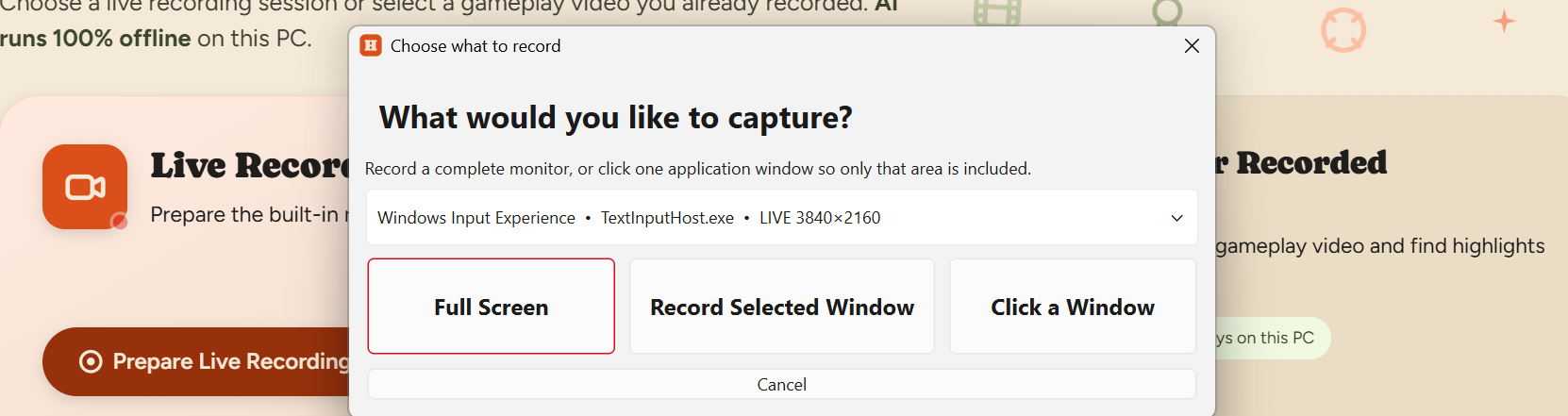
Prepare Live Recording
Choose Live Record on Home, then prepare the recording.
Choose what to capture
Record a selected window, click a window, or use full screen. Window capture follows the app as it moves or changes size.
Confirm the live size
Verify the selected title, application name, and displayed live dimensions.
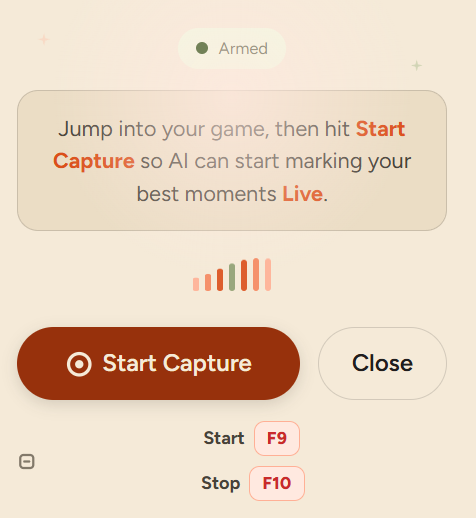
Start recording
Select Start Capture or press F9. The recording controller shows elapsed time.
Keep playing normally
Every completed 15-minute block is safely closed and analyzed while capture continues.
Stop safely
Use the red Stop button or press F10. The final remainder is processed in sequence and your reels are shown.
About sound: Haval first tries to capture audio from the selected application. If unavailable, it can use system-output loopback.
AI processing
Understand what is happening.
Longer and higher-resolution recordings naturally take more time while the offline AI works.
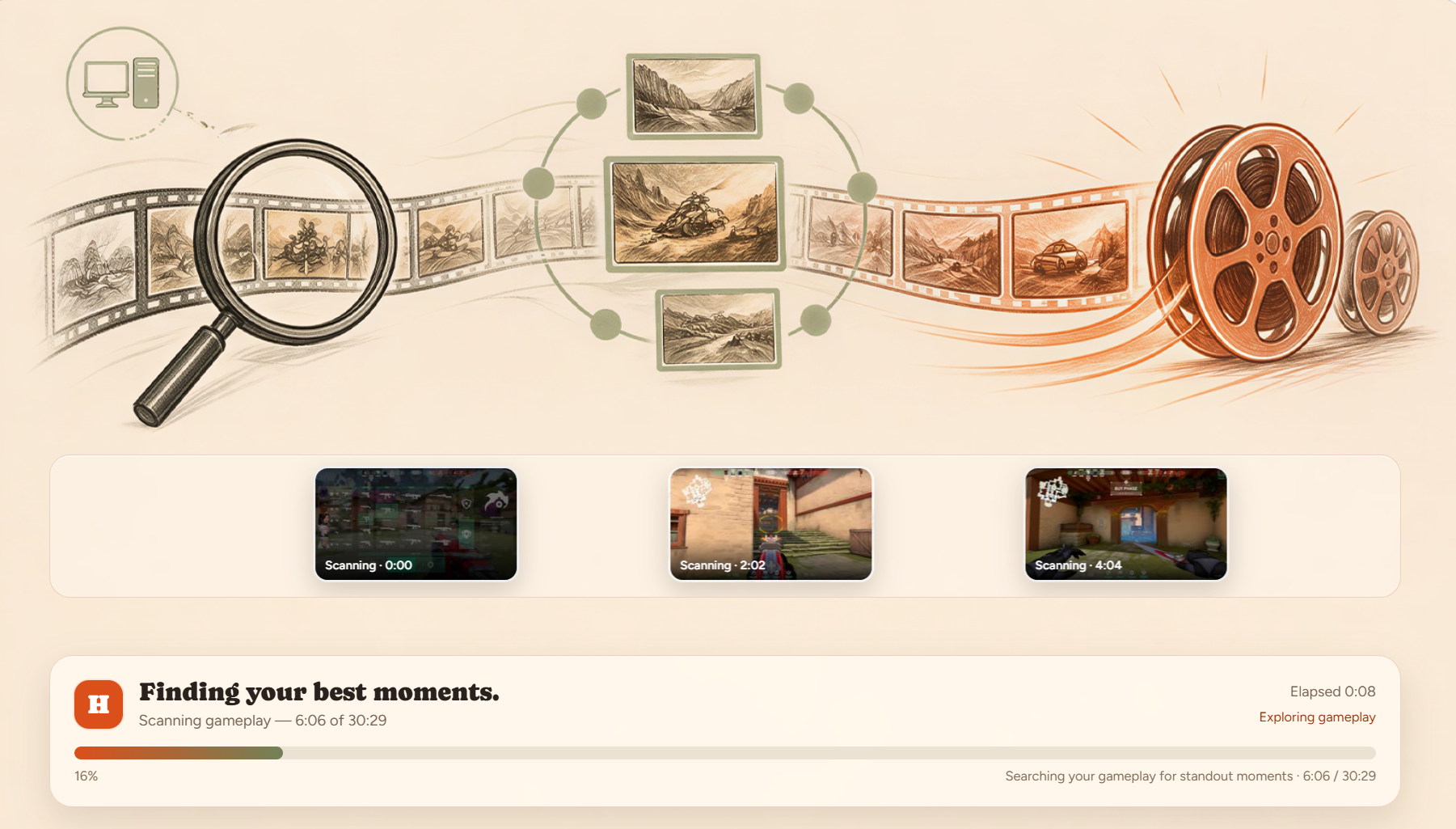
Discover activity→Judge meaningful events→Cut highlights→Build reels
Good to know: Preview tiles show where the app is looking; not every preview becomes a final highlight.
Results
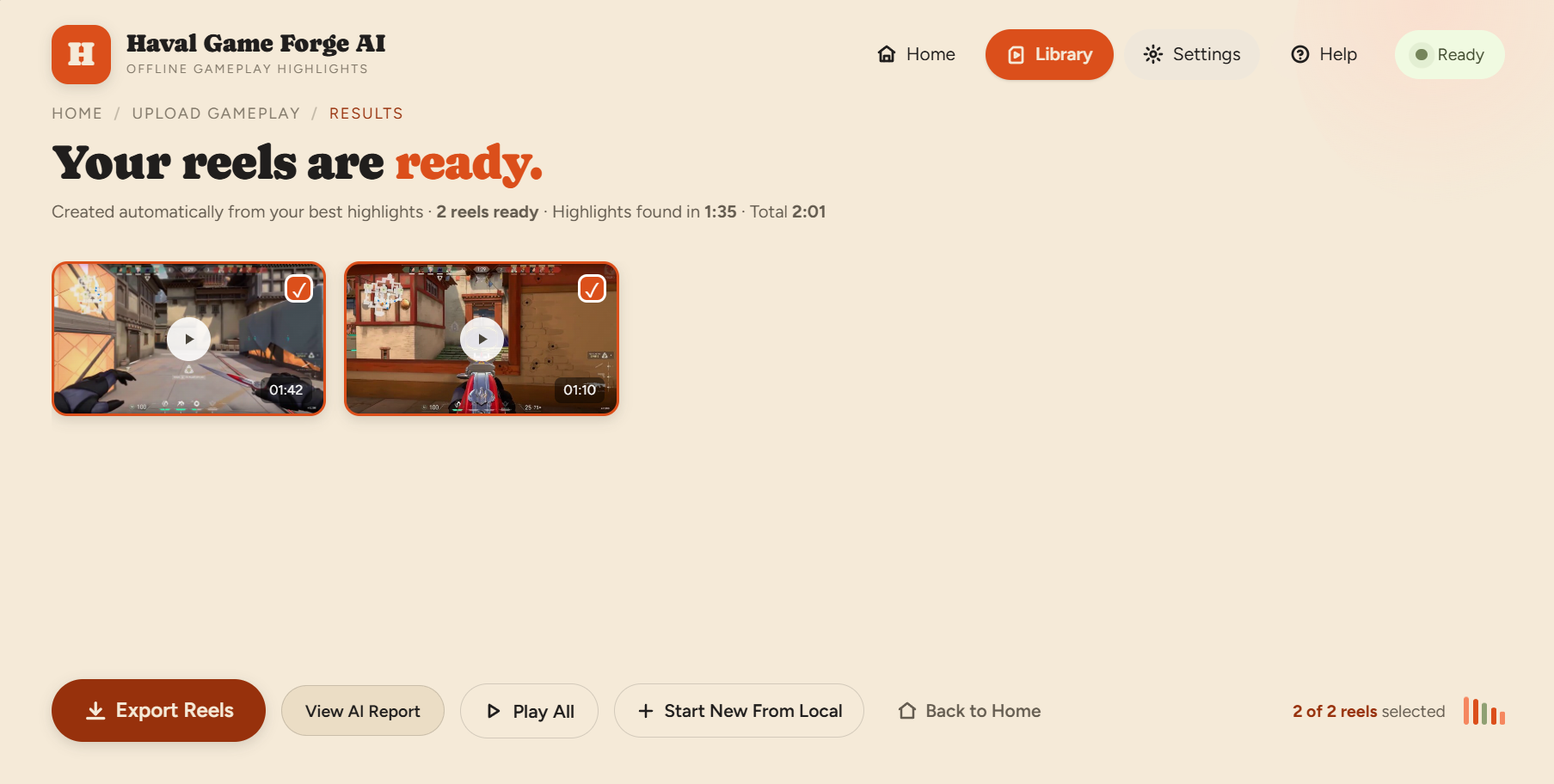
Your reels are ready.
Review finished reels, export selected files, or begin another workflow.
Play a reel
Select a reel card or use Play All to open the generated video.
Select what you want
Choose one or more reel cards before exporting.
Export your reels
Select Export Selected Clips or Export Reels, then choose the destination folder.
Start again
Use Start New From Local for another recording, or return Home to choose Live Capture.
Library
Manage all your highlights.
Your Library reads previously generated reels that remain in your selected storage location.
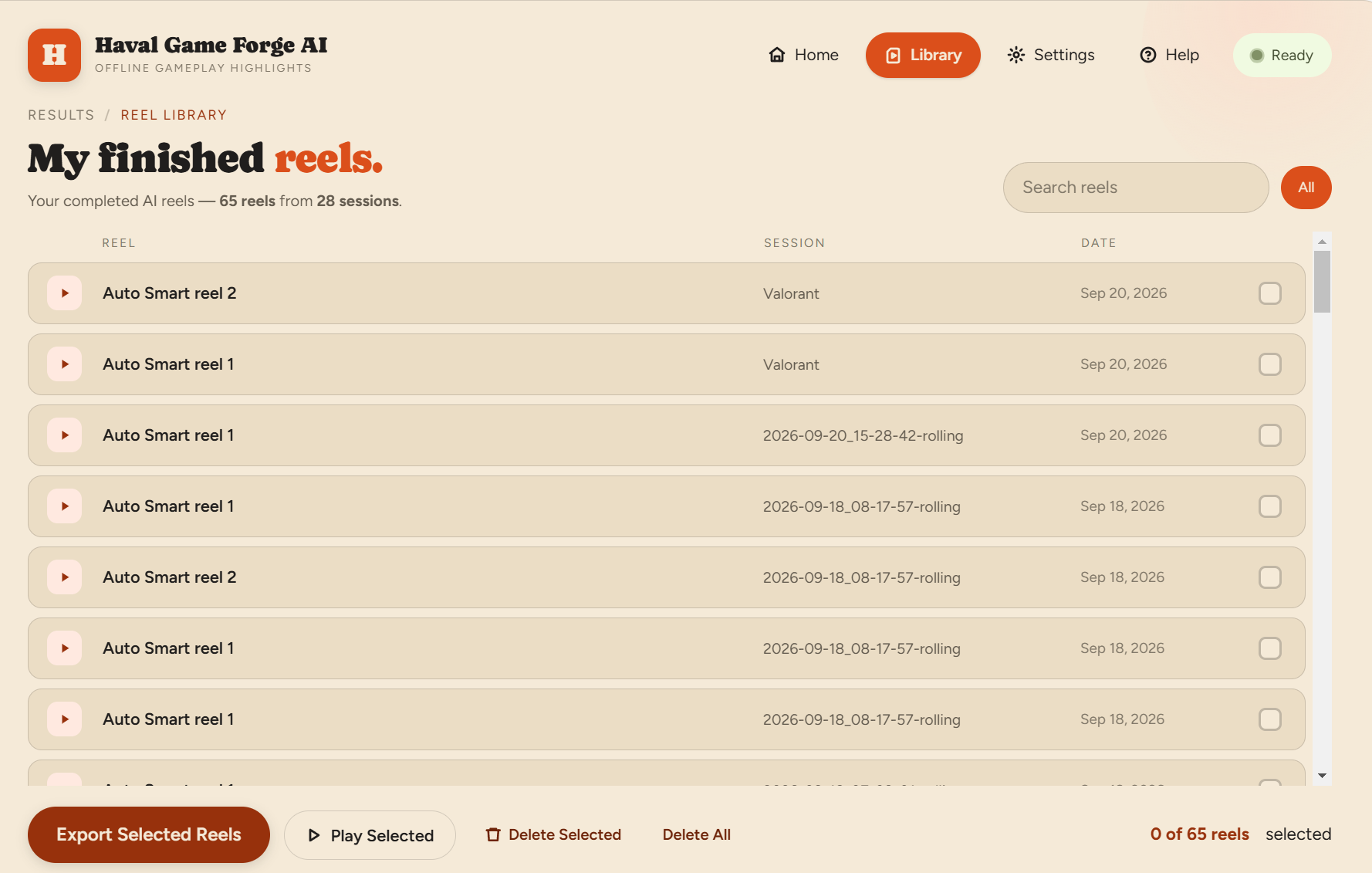
Open the selected reel, or play the first available reel with Play All.
Copy selected reels to another folder without removing the originals.
Delete selected items or clear the library. Deletion cannot be undone.
Settings
Make Haval work your way.
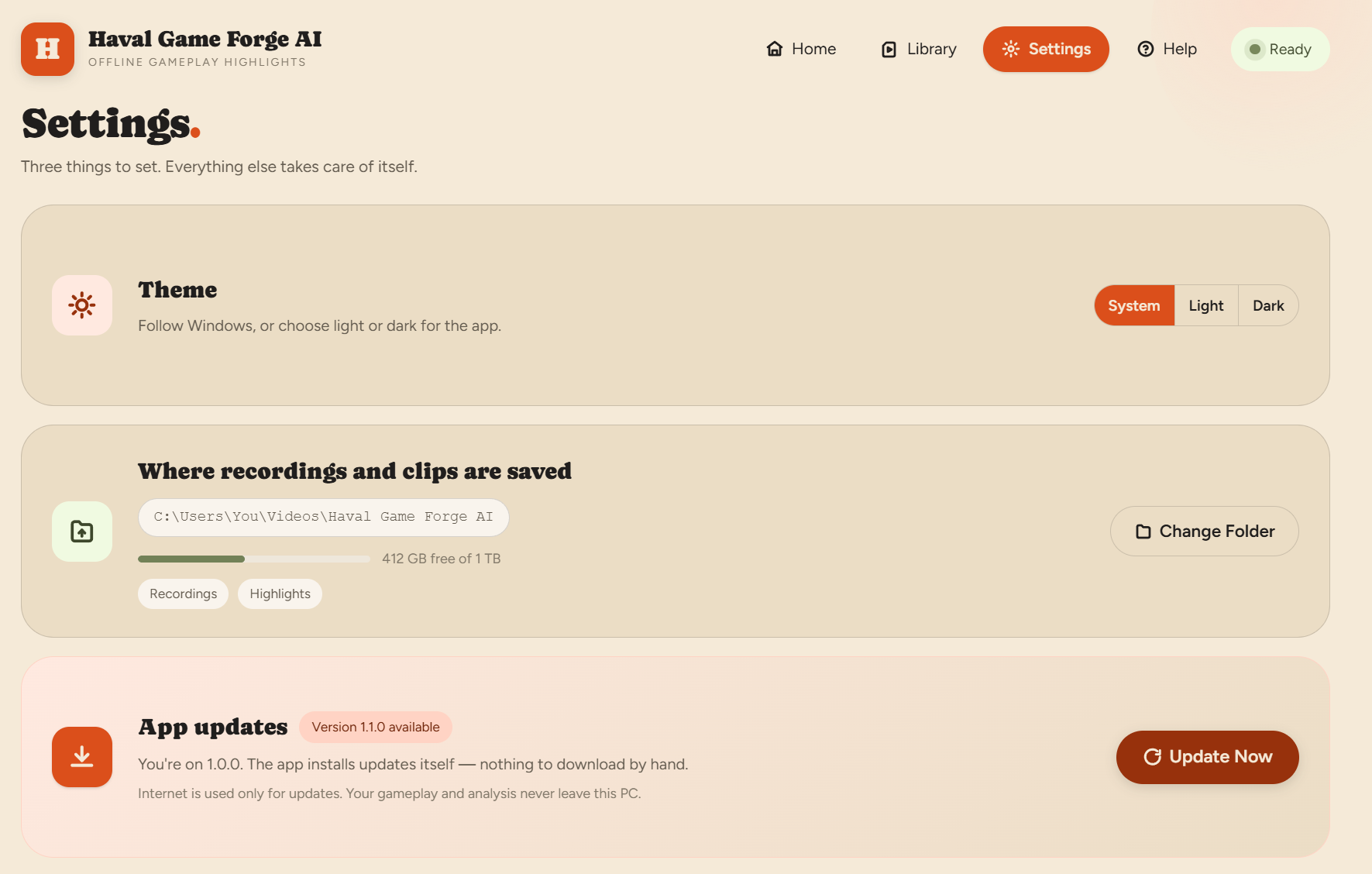
Control appearance, storage, updates, and recording shortcuts.
Choose a theme
Select System, Light, or Dark. System follows your Windows appearance.
Choose where files are saved
Select Change Folder to set the location for recordings, highlights, and reels.
Check for updates
Use Update Now to check the installed application status.
Recording shortcuts
The defaults are F9 to start and F10 to stop. Active shortcuts appear in the armed popup.
Quick help
Common questions.
Simple answers for situations customers encounter most often.
Which workflow should I choose?
Choose Upload when you already have the full video and want direct one-pass analysis. Choose Live Capture when you want Haval to record a game or monitor and analyze completed blocks while recording continues.
Why does Live Capture still process after I stop?
If a 15-minute block is still being analyzed, it finishes first. The final remaining footage is processed next. Completed reels are kept and are not judged again.
Why is there no highlight for part of my gameplay?
The AI keeps moments it judges meaningful and distinct. Ordinary travel, menus, repeated scenes, and weak activity may be excluded.
Can I move or resize a captured window?
Yes. Selected-window capture follows that Windows application when it moves and starts a new recording segment when its dimensions change.
Where are my files?
Open Settings to see or change the storage folder. The Library displays completed reels found in that location.